
Introduction
Imagine spending weeks writing the perfect blog post only for Google to never find it. That’s exactly what happens when your website has technical SEO issues.Technical SEO is the foundation of every successful website. Without it, even the best content struggles to rank. The good news? You don’t need to be a developer to get it right.
This beginner-friendly guide covers everything you need to know about Technical SEO for Beginners 2026 (Step-by-Step Guide) in 2026 from fixing crawl errors to optimizing Core Web Vitals in simple, actionable steps.
What is Technical SEO?
Technical SEO is the process of optimizing your website’s infrastructure so search engines can easily find, crawl, index, and rank your pages.Think of it this way: on-page SEO is what you say, and technical SEO is how clearly you say it to Google.
How search engines work (simplified):
- Crawling — Googlebot visits your pages by following links.
- Indexing — Google stores and organizes your page content in its database.
- Ranking — Google decides where your page appears in search results based on hundreds of signals.
Technical SEO ensures none of these three steps get blocked or broken.
Technical SEO vs On-Page SEO
| Feature | Technical SEO | On-Page SEO |
|---|---|---|
| Focus | Site structure & performance | Content & keywords |
| Examples | XML sitemap, site speed, HTTPS | Title tags, headings, internal links |
| Who does it | Developer or SEO specialist | Content creator or SEO |
| Tools used | Search Console, Screaming Frog | Yoast SEO, Surfer SEO |
| Impact | Crawlability & indexing | Relevance & ranking |
Both work together. You need strong on-page SEO AND solid technical SEO to rank in 2026.
Why Technical SEO Matters in 2026
Google keeps evolving. In 2026, these factors make technical SEO more critical than ever:
- Google’s AI Search (SGE) now surfaces structured, well-organized content faster.
- Core Web Vitals are direct ranking signals slow pages lose rankings.
- Mobile-First Indexing means Google ranks the mobile version of your site first.
- Page experience signals like HTTPS, interactivity, and visual stability all count.
A fast, crawlable, error-free website simply performs better in rankings and in user experience.
What is Google E.E.A.T And Why It Affects Technical SEO?
If you’ve been following SEO news, you’ve heard the term EEAT Experience, Expertise, Authoritativeness, and Trustworthiness. Google uses these signals to decide how much it can rely on your website’s content.
But here’s what most beginners miss: Technical SEO and EEAT are deeply connected.
Experience
Google wants to see that real people with real experience are behind your content. Technically, you can signal this by:
- Adding a detailed Author Bio page with credentials and social profiles
- Linking your articles to your author profile page
- Including first-person examples and case studies in your content (e.g., “When I ran a technical audit on my own blog, I found 47 crawl errors…”)
Expertise
Expertise means your content reflects genuine knowledge of the subject. From a technical SEO standpoint:
- Use structured data (Author schema) to tell Google who wrote the content and what their background is
- Create a dedicated /about page that clearly explains your qualifications
- Link out to authoritative sources like Google Search Central, Moz, or Ahrefs when referencing facts
Authoritativeness
Authority is built over time but technical SEO helps accelerate it:
- A clean internal linking structure passes authority from your strong pages to newer ones
- Getting backlinks from trusted sites in your niche signals authority to Google
- Publishing a consistent content cluster around your topic (e.g., all things SEO) builds topical authority, which Google treats as a trust signal
Trustworthiness
Trust is the most important EEAT pillar. Google’s documentation explicitly states that trustworthiness is the foundation of the other three. Here’s how to signal it technically:
- HTTPS is non-negotiable An HTTP site is flagged as “Not Secure” by browsers. Google confirmed HTTPS as a ranking signal back in 2014, and it remains critical in 2026.
- Add a clear Privacy Policy, Terms of Service, and Contact page Google’s Quality Raters look for these when evaluating YMYL (Your Money, Your Life) sites.
- Display real contact information A physical address, email, or phone number builds trust for both Google and visitors.
- Add reviews or testimonials with Review schema so Google can surface star ratings in search results.
E.E.A.T Technical SEO Checklist
| EEAT Pillar | Technical Action |
|---|---|
| Experience | Author Bio page + Author schema |
| Expertise | About page + outbound links to sources |
| Authoritativeness | Internal linking + backlink building |
| Trustworthiness | HTTPS + Privacy Policy + Contact page + Review schema |
Pro Tip: Google’s Search Quality Rater Guidelines (a public document you can download for free) is the closest thing we have to Google’s EEAT rulebook. Reading even the first 20 pages will completely change how you think about your website.
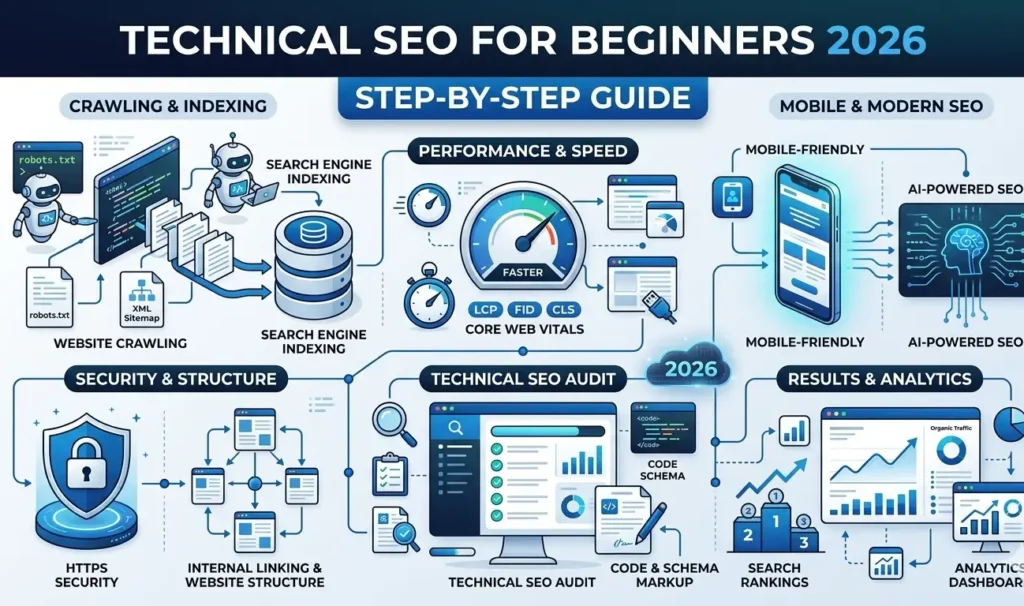
Technical SEO Checklist for Beginners (2026)
Use this checklist as your starting point:
- Switch to HTTPS (install SSL certificate)
- Create and submit an XML sitemap
- Configure your robots.txt file correctly
- Fix all broken links (404 errors)
- Improve page speed (target under 2.5 seconds)
- Ensure your site is mobile-friendly
- Use canonical tags to fix duplicate content
- Add schema markup (structured data)
- Fix crawl errors in Google Search Console
- Optimize Core Web Vitals (LCP, CLS, INP)
- Add Author Bio page with credentials (E.E.A.T – Experience)
- Create a detailed About page (E.E.A.T Expertise)
- Add Privacy Policy and Contact page (E.E.A.T -Trust)
- Implement Author schema using Rank Math or Yoast (E.E.A.T -Authoritativeness)
- Add Review/Testimonial schema where applicable (E.E.A.T – Trustworthiness)
Step-by-Step Technical SEO Setup
Step 1 — Set Up Google Search Console
Google Search Console (GSC) is your #1 free technical SEO tool. It shows you exactly how Google sees your site.
How to set it up:
- Go to search.google.com/search-console
- Add your website as a property
- Verify ownership (via HTML tag, DNS record, or Google Analytics)
- Submit your XML sitemap
Once verified, GSC shows you indexing status, crawl errors, Core Web Vitals data, and mobile usability issues all for free.
Step 2 — Create an XML Sitemap
An XML sitemap is a file that lists all your important URLs so Google can find and index them faster.
For WordPress users: Install the Yoast SEO or Rank Math plugin both generate sitemaps automatically at yoursite.com/sitemap_index.xml.
Submit your sitemap in GSC:
- Go to Search Console → Sitemaps
- Enter your sitemap URL
- Click Submit
This tells Google exactly which pages exist on your site.
Step 3 — Optimize Your robots.txt
Your robots.txt file tells search engines which pages to crawl and which to skip.
Example robots.txt for a WordPress site:
User-agent: *
Disallow: /wp-admin/
Allow: /wp-admin/admin-ajax.php
Sitemap: https://yoursite.com/sitemap_index.xml
Key rules:
- Never accidentally block your entire site with
Disallow: / - Don’t block pages you want indexed
- Always include your sitemap URL in robots.txt
You can check your robots.txt at yoursite.com/robots.txt.
Step 4 — Improve Website Speed
Site speed is a confirmed Google ranking factor. A page that loads in under 2 seconds keeps users happy and earns better rankings.
Quick wins for faster load times:
- Compress images — Use WebP format and tools like Squoosh or ShortPixel
- Use a CDN -Cloudflare (free) delivers your content from servers closest to your visitor
- Enable caching -WP Rocket or W3 Total Cache for WordPress sites
- Enable lazy loading -Images load only when a user scrolls to them
- Minify CSS/JS -Plugins like Autoptimize handle this automatically
Test your speed at PageSpeed Insights or GTmetrix.
Step 5 — Mobile-Friendly Optimization
Since Google uses mobile-first indexing, your mobile site IS your site in Google’s eyes.
How to check mobile-friendliness:
- Use Google Search Console → Mobile Usability report
- Run the Mobile-Friendly Test
What to fix:
- Use a responsive WordPress theme (Astra, GeneratePress, Kadence)
- Make sure buttons and text are readable without zooming
- Avoid intrusive pop-ups on mobile
Step 6 — Fix Crawl Errors
Crawl errors happen when Google tries to visit a page but can’t access it. They waste your crawl budget and hurt rankings.
Step 1 — Set Up Google Search Console
Google Search Console (GSC) is your #1 free technical SEO tool. It shows you exactly how Google sees your site.
How to set it up:
- Go to search.google.com/search-console
- Add your website as a property
- Verify ownership (via HTML tag, DNS record, or Google Analytics)
- Submit your XML sitemap
Once verified, GSC shows you indexing status, crawl errors, Core Web Vitals data, and mobile usability issues — all for free.
Step 2 — Create an XML Sitemap
An XML sitemap is a file that lists all your important URLs so Google can find and index them faster.
For WordPress users: Install the Yoast SEO or Rank Math plugin — both generate sitemaps automatically at yoursite.com/sitemap_index.xml.
Submit your sitemap in GSC:
- Go to Search Console → Sitemaps
- Enter your sitemap URL
- Click Submit
This tells Google exactly which pages exist on your site.
Step 3 — Optimize Your robots.txt
Your robots.txt file tells search engines which pages to crawl and which to skip.
Example robots.txt for a WordPress site:
User-agent: *
Disallow: /wp-admin/
Allow: /wp-admin/admin-ajax.php
Sitemap: https://yoursite.com/sitemap_index.xml
Key rules:
- Never accidentally block your entire site with
Disallow: / - Don’t block pages you want indexed
- Always include your sitemap URL in robots.txt
You can check your robots.txt at yoursite.com/robots.txt.
Step 4 — Improve Website Speed
Site speed is a confirmed Google ranking factor. A page that loads in under 2 seconds keeps users happy and earns better rankings.
Quick wins for faster load times:
- Compress images — Use WebP format and tools like Squoosh or ShortPixel
- Use a CDN — Cloudflare (free) delivers your content from servers closest to your visitor
- Enable caching — WP Rocket or W3 Total Cache for WordPress sites
- Enable lazy loading — Images load only when a user scrolls to them
- Minify CSS/JS — Plugins like Autoptimize handle this automatically
Test your speed at PageSpeed Insights or GTmetrix.
Step 5 — Mobile-Friendly Optimization
Since Google uses mobile-first indexing, your mobile site IS your site in Google’s eyes.
How to check mobile-friendliness:
- Use Google Search Console → Mobile Usability report
- Run the Mobile-Friendly Test
What to fix:
- Use a responsive WordPress theme (Astra, GeneratePress, Kadence)
- Make sure buttons and text are readable without zooming
- Avoid intrusive pop-ups on mobile
Step 6 — Fix Crawl Errors
Crawl errors happen when Google tries to visit a page but can’t access it. They waste your crawl budget and hurt rankings.
Common crawl errors and fixes:
| Error | Cause | Fix |
|---|---|---|
| 404 Not Found | Page deleted or URL changed | Set up 301 redirect |
| Soft 404 | Page exists but has no content | Add content or redirect |
| Redirect Chain | Multiple redirects in a row | Fix to single redirect |
| Server Error (5xx) | Hosting issue | Contact your hosting provider |
Find these errors in Google Search Console → Pages → “Not indexed” section.
Step 7 — Optimize Core Web Vitals
Core Web Vitals are Google’s official page experience metrics:
- LCP (Largest Contentful Paint) — How fast your main content loads. Target: under 2.5 seconds.
- CLS (Cumulative Layout Shift) — How stable your page layout is. Target: under 0.1.
- INP (Interaction to Next Paint) — How fast your page responds to clicks. Target: under 200ms.
Quick fixes:
- Optimize your hero image for faster LCP
- Set dimensions on all images to prevent layout shifts (CLS)
- Reduce JavaScript for better INP
Check your scores in PageSpeed Insights or GSC → Core Web Vitals report.
Best Free Technical SEO Tools in 2026
| Tool | What It Does |
|---|---|
| Google Search Console | Indexing, crawl errors, Core Web Vitals |
| Google PageSpeed Insights | Speed and Core Web Vitals score |
| Screaming Frog (free up to 500 URLs) | Full site crawl, broken links, redirects |
| Ahrefs Webmaster Tools (free) | Backlinks, crawl errors, site health |
| GTmetrix | Detailed speed analysis |
| Semrush (free tier) | Site audit, keyword tracking |
Common Technical SEO Mistakes Beginners Make
Avoid these errors that trip up most beginners:
- Slow websites — Not compressing images or using shared hosting
- Missing sitemap — Google finds pages slower without one
- Blocking important pages in robots.txt — Accidentally hiding content from Google
- Duplicate content — Same content on multiple URLs without canonical tags
- Too many plugins — Especially on WordPress, plugins slow down your site
- Ignoring mobile users — A desktop-only design kills your mobile rankings
- Broken internal links — They waste crawl budget and hurt user experience
Technical SEO for WordPress Beginners
WordPress makes technical SEO easier with the right plugins:
| Category | Recommended Plugin |
|---|---|
| SEO (sitemap, schema) | Rank Math or Yoast SEO |
| Caching & Speed | WP Rocket or LiteSpeed Cache |
| Image Optimization | ShortPixel or Imagify |
| CDN | Cloudflare (free) |
| Broken Link Checker | Broken Link Checker by AIOSEO |
Start with Rank Math (free version) it handles your sitemap, robots.txt, schema markup, and canonical tags all in one plugin.
Advanced Technical SEO Tips for 2026
Once you’ve covered the basics, level up with these strategies:
- Entity SEO -Help Google understand who you are and what your site is about using structured data and About/Author pages.
- Structured Data (Schema Markup) – Add FAQ schema, Article schema, or Product schema to win rich snippets in search results.
- Topical Authority – Create clusters of related content so Google sees your site as an expert source on your topic.
- Internal Linking Strategy -Link new posts to older high-authority pages to spread link equity across your site.
- Crawl Budget Optimization – For larger sites, reduce crawl waste by blocking low-value pages (tags, archives) in robots.txt and using noindex where needed.
- Author Schema -Implement Person schema on your author pages so Google can connect your content to a real, verifiable identity. This directly boosts the Experience and Expertise pillars of EEAT.
- Sitelinks Search Box – For established sites, Organization schema can trigger a search box in Google’s results a strong authority signal.
- NAP Consistency – If you run a local or small business website, keep your Name, Address, and Phone number identical across your site, Google Business Profile, and directories. This is a core trust signal.
Author:
This guide is written by an SEO practitioner with 6+ years of hands-on experience optimizing WordPress websites, affiliate blogs, and small business sites. All recommendations in this article are based on real-world testing and Google’s official documentation not theory.
Is Technical SEO hard for beginners?
Not at all. With tools like Google Search Console, Rank Math, and this guide, beginners can handle 90% of technical SEO without writing a single line of code.
How long does Technical SEO take to show results?
Basic fixes like submitting a sitemap can show results in days. Bigger improvements like site speed or crawl fixes usually reflect in Google rankings within 4–8 weeks.
Which Technical SEO tool is best for beginners?
Start with Google Search Console it’s free, official, and shows you exactly what Google sees on your site.
Can I do Technical SEO without coding?
Yes. Tools like Rank Math, WP Rocket, Cloudflare, and ShortPixel handle most technical tasks without any coding required.
Is Technical SEO important in 2026?
Absolutely. With Google’s AI updates, mobile-first indexing, and Core Web Vitals as ranking factors, technical SEO has never been more important.